Enable SSH on Steam Deck: A Step-by-Step Guide
- By Alexis
- Apr 12,2025
Quick Links
The Steam Deck is an incredibly versatile piece of hardware that caters to both gamers and portable PC users. With its desktop mode, users can do much more than just play games, including accessing files on the internal storage remotely for various purposes.
Running on a version of Linux, the Steam Deck supports Secure Shell (SSH), a protocol that allows secure remote data access. However, many Steam Deck owners are unaware of how to enable and utilize this feature. This guide aims to provide a comprehensive overview of enabling and using SSH on the Steam Deck, along with additional helpful information.
Steps For Enabling SSH On The Steam Deck
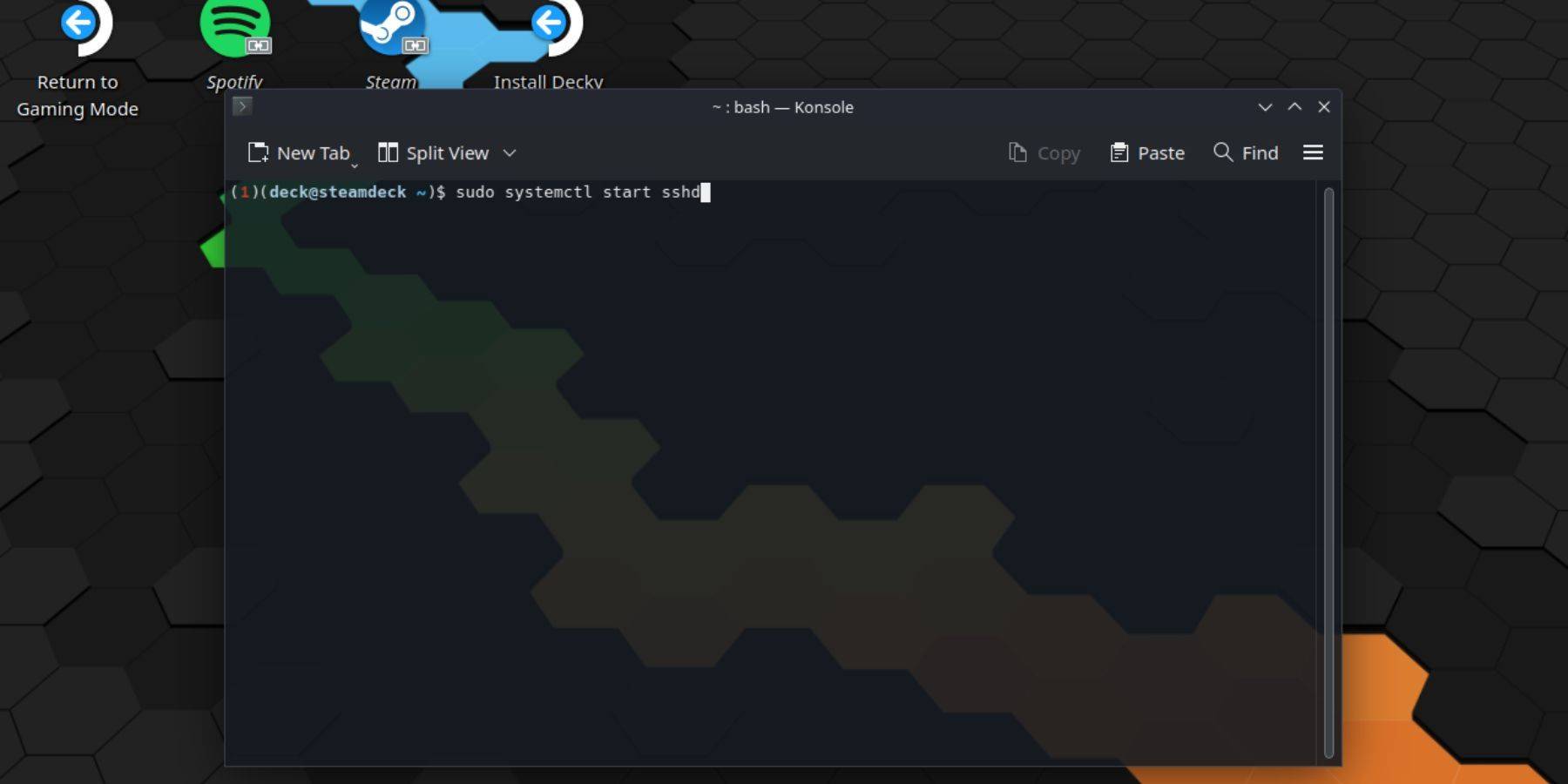 To enable SSH on your Steam Deck, follow these straightforward steps:
- Power on your Steam Deck.
- Press the Steam button.
- Navigate to Settings > System > System Settings and select Enable Developer Mode.
- Press the Steam button again.
- Select Power > Switch to Desktop Mode.
- Open the Konsole from the Start menu.
- If you haven’t already, set a password by entering the command:
passwd. Follow the prompts to set a secure password. - Enable SSH by entering the command:
sudo systemctl start sshd. To ensure SSH starts automatically after a reboot, enter:sudo systemctl enable sshd. - Once SSH is enabled, you can remotely access your Steam Deck's data using any third-party SSH client.
Important: Avoid deleting or moving system files to prevent corrupting the operating system.
How To Disable SSH On The Steam Deck
To disable SSH on your Steam Deck, follow these steps:
- Open the Konsole from the Start menu.
- Enter the command to disable SSH:
sudo systemctl disable sshd. If you want to stop SSH immediately, use:sudo systemctl stop sshd.
How To Use SSH To Connect To The Steam Deck
 Once SSH is enabled, you can use a third-party application like Warpinator to access data remotely. Install Warpinator on both your Steam Deck and your PC, and launch them simultaneously. Transferring data between devices becomes as easy as 1-2-3.
If you're using a Linux PC, you don't need a third-party application. Simply open your file manager and enter sftp://deck@steamdeck in the address bar. Enter the password you previously set to complete the connection.

Latest News
more >-

-

-

-

- Another Eden Launches Ode to Origin Act 2
- 05/31,2026
-