Best Settings for Marvel Rivals: Boost Frames and Reduce Input Lag
- By Zoe
- Jan 25,2025
Optimize Your Marvel Rivals Gameplay: A Guide to the Best Settings
Marvel Rivals delivers thrilling combat, iconic heroes, and stunning visuals. While well-optimized, fine-tuning your settings can significantly enhance gameplay fluidity and control. This guide details adjustments for display, graphics, and audio, maximizing your hardware's potential for a superior superhero experience.
(Note: Settings not explicitly mentioned are customizable based on personal preference, including binds, accessibility, and social options.)
Marvel Rivals: Optimal Display Settings
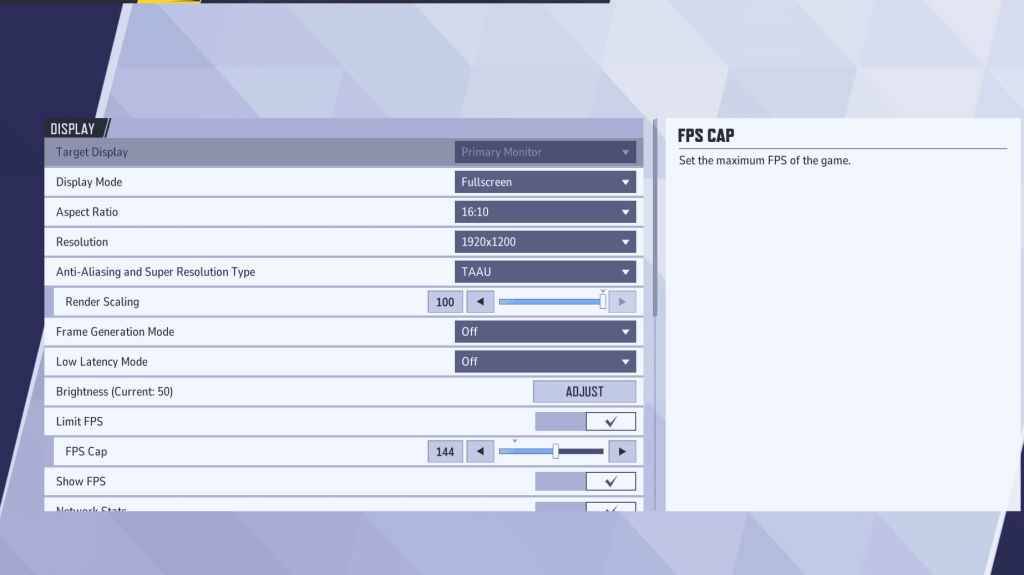
Begin with display settings. Fullscreen mode is recommended for optimal performance, dedicating all system resources to the game for maximized FPS and reduced distractions. Borderless Windowed mode offers multitasking convenience but may compromise frame rate and introduce input lag.
| Setting | Description | Best Setting |
|---|---|---|
| Display Mode | How the game is displayed. | Fullscreen (prioritizes performance); Borderless Windowed (enables multitasking) |
| Resolution | Game resolution. | Native Monitor Resolution |
| Aspect Ratio | Matches game display to monitor's native ratio, preventing distortion. | Native Monitor Aspect Ratio |
| Anti-aliasing & Super Resolution | Anti-aliasing and resolution scaling technologies. | Experiment to find optimal balance between visuals and performance. |
| Frame Generation | Varies by PC; TAAU is generally safe, but experiment for best performance. | Off |
| Low Latency Mode | Reduces input lag (Nvidia GPUs only). | On + Boost (if available) |
| V-Sync | Synchronizes frame rate with monitor refresh rate (may introduce input lag). | Off |
| Limit FPS | Caps maximum frame rate, stabilizing performance and reducing GPU strain. | Monitor's refresh rate |
| Show FPS | Displays FPS on-screen for real-time performance monitoring. | On |
| Network Stats | Displays network statistics. | On |
Marvel Rivals: Optimal Graphics Settings
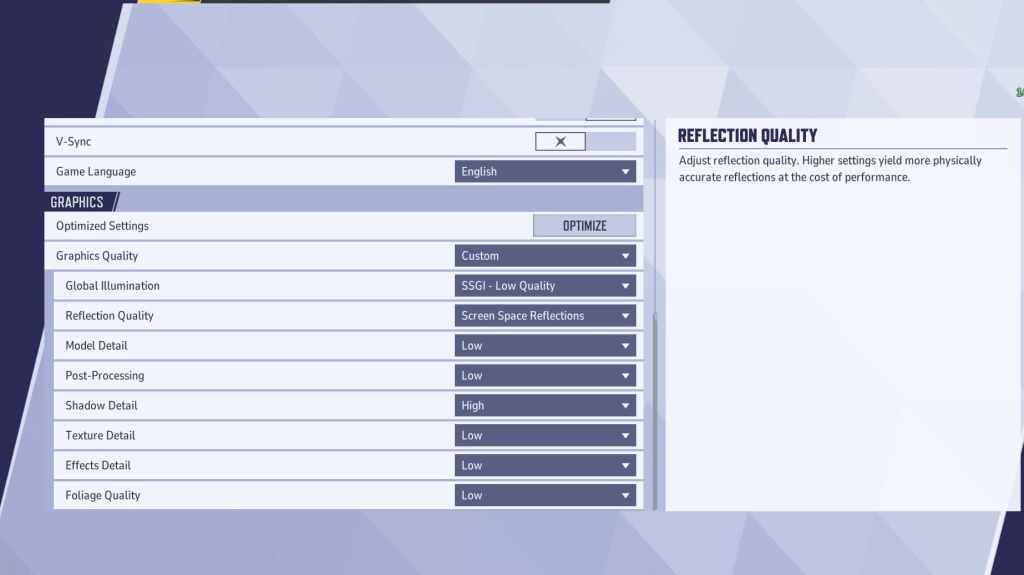
Graphics settings heavily impact performance. Prioritize performance over visual fidelity for competitive play, setting most to Low for smoother, more responsive gameplay. High-end PCs can experiment with Medium or High settings for improved visuals.
| Setting | Description | Best Setting |
|---|---|---|
| Graphics Quality | Preset adjusting multiple visual settings. | Custom |
| Global Illumination | Simulates light bouncing; higher settings are visually richer but demanding. | SSGI – Low Quality |
| Reflection Quality | Clarity and realism of reflections; higher settings impact performance. | Screen Space Reflections |
| Model Detail | Complexity and realism of models; higher settings require more processing power. | Low |
| Post-Processing | Visual effects (motion blur, depth of field); may reduce frame rates. | Low |
| Shadow Detail | Sharpness and quality of shadows; higher settings significantly affect performance. | High |
| Texture Detail | Resolution of in-game textures; higher settings require more VRAM. | Low |
| Effects Detail | Quality of visual effects; lowering reduces clutter and boosts performance. | Low |
| Foliage Quality | Density and detail of environmental elements; lower settings improve FPS outdoors. | Low |
Disable mouse acceleration in both game and Windows settings for improved aiming precision.
Marvel Rivals: Optimal Audio Settings
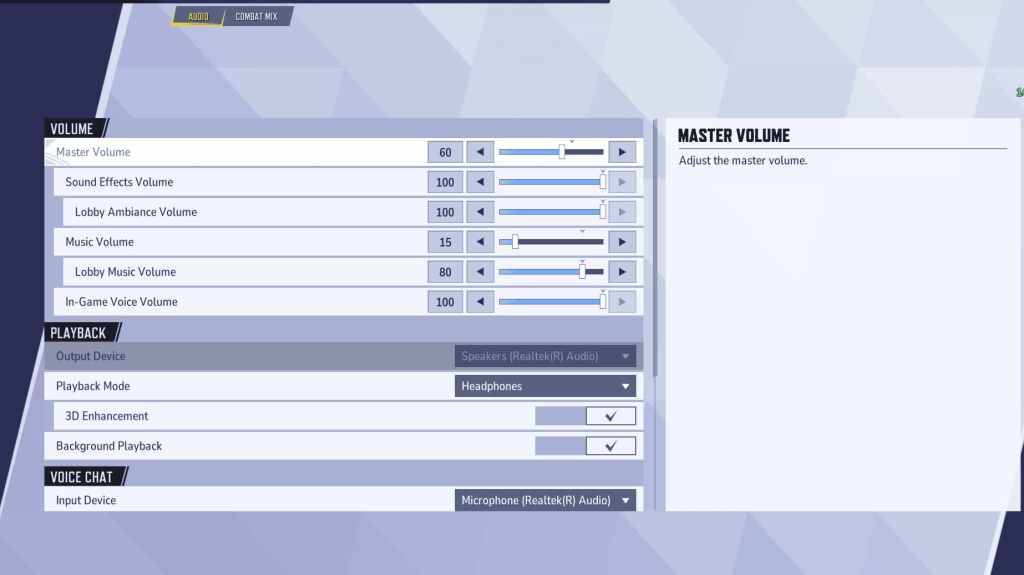
Audio significantly impacts gameplay. Enable 3D Enhancement for enhanced spatial sound, improving enemy location awareness. Use HRTF (if available) for further audio cue enhancement. Adjust volume levels to personal preference.
This comprehensive guide will help you fine-tune Marvel Rivals settings for optimal performance and a superior gaming experience.
Latest News
more >-

-

-
-

-

- No, I'm Not A Human Release Date and Time
- 10/21,2026